제출 후 Google 양식 응답 수정
hackernews
|
|
🔬 연구
#review
원문 출처: hackernews · Genesis Park에서 요약 및 분석
요약
## 신속한 편집을 위한 주요 사항 제출 오류 수정에 대한 결론은 다음과 같습니다. 1. **응답자는 제출 후 페이지나 이메일 영수증에서 고유한 편집 링크를 찾습니다.** 3.
본문
[Minform](https://minform.io/) ProductTemplates[Pricing](https://minform.io/pricing)[Blog](https://minform.io/blog)[Help](https://minform.io/help) [Log in](https://minform.io/login)[Get started](https://minform.io/signup) [](https://minform.io/blog) # How to Edit Google Forms Response After Submission Ashish Rawat April 14, 2026 4 min read  On this page * [Key Takeaways for Rapid Editing](https://minform.io/blog/how-to-edit-google-forms-response-after-submission#key-takeaways-for-rapid-editing) * [Step 1: The Owner Must Enable Response Editing](https://minform.io/blog/how-to-edit-google-forms-response-after-submission#step-1-the-owner-must-enable-response-editing) * [Step 2: How to Find Your Edit Link as a Respondent](https://minform.io/blog/how-to-edit-google-forms-response-after-submission#step-2-how-to-find-your-edit-link-as-a-respondent) * [Step 3: Correcting Data Directly in Google Sheets](https://minform.io/blog/how-to-edit-google-forms-response-after-submission#step-3-correcting-data-directly-in-google-sheets) * [Example](https://minform.io/blog/how-to-edit-google-forms-response-after-submission#example) * [What to Do if the Edit Link Is Missing](https://minform.io/blog/how-to-edit-google-forms-response-after-submission#what-to-do-if-the-edit-link-is-missing) * [Mastering Your Google Forms Submission Workflow](https://minform.io/blog/how-to-edit-google-forms-response-after-submission#mastering-your-google-forms-submission-workflow) That gut-sinking feeling happens the second you click submit. You realize your phone number is wrong or you misspelled a critical name. **The data is actually fixable if the settings are right.** This depends entirely on the owner enabling the correct permissions before the form goes live. ## Key Takeaways for Rapid Editing Here is the bottom line on fixing submission errors: 1. Owners must manually toggle the edit permission in the settings tab. 2. **Respondents find their unique edit link on the post-submission page or in their email receipt.** 3. All changes automatically update the linked Google Sheet without creating messy duplicate rows. ## Step 1: The Owner Must Enable Response Editing You need to set the stage before anyone fills out your form. If you do not flip the right switch, your respondents are stuck with their first attempt. **Ensuring the right toggles are active prevents data entry headaches.** You can configure these controls in the [Google Forms Settings Dashboard](https://support.google.com/docs/answer/139706) within your browser. 1. Open your Google Form as the owner. 2. Click the Settings tab at the top of the editor. 3. Expand the Responses section using the dropdown arrow. 4. Toggle the switch for Allow response editing to the ON position. 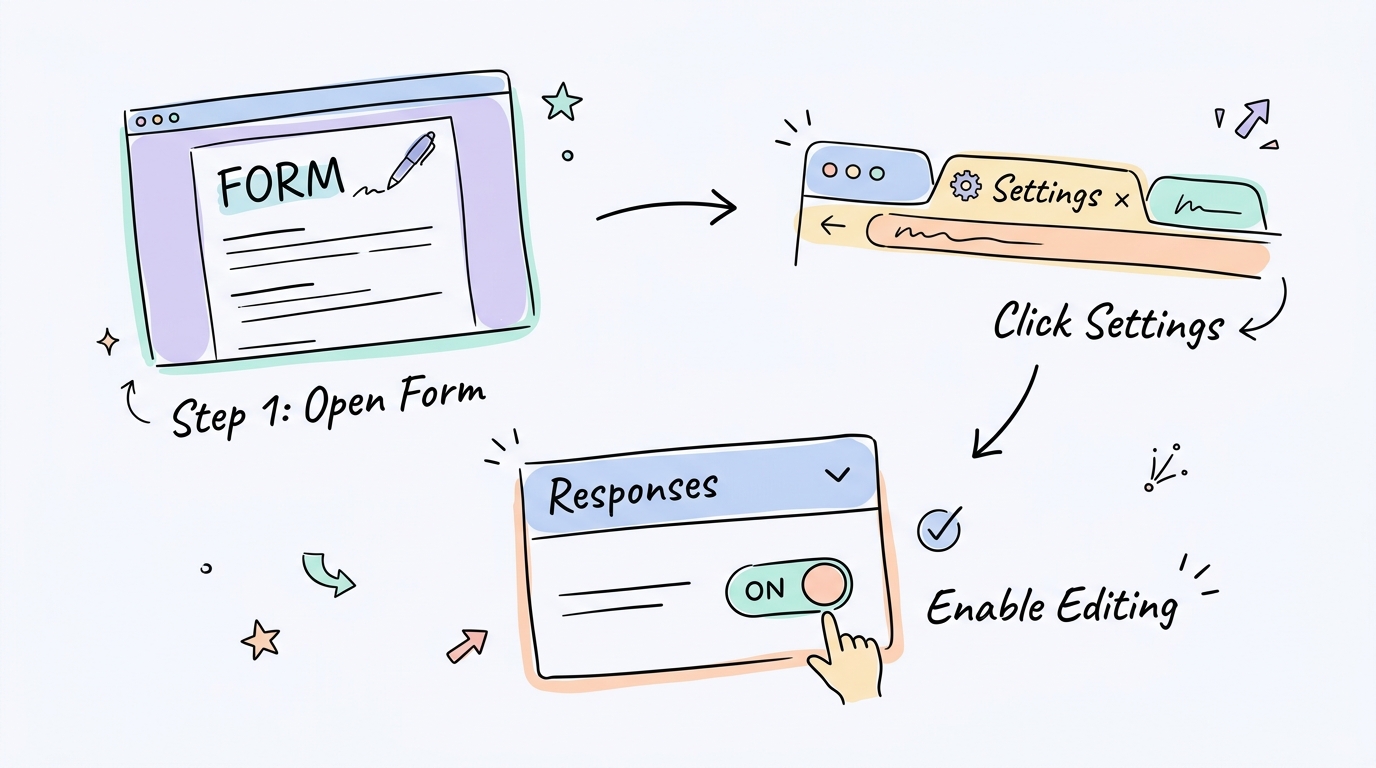 * Editor access to the form * A browser logged into your Google account * Two minutes for configuration > **Tip:** Enable Response receipts as well. This sends the edit link directly to the respondent's inbox so they do not lose it. ## Step 2: How to Find Your Edit Link as a Respondent You submitted the form and noticed a mistake. The next move depends on how the owner configured the settings. **Accessing your data requires finding a specific edit link.** You can usually find it in two primary locations. 1. Look at the confirmation page immediately after clicking submit. 2. Click the Edit your response link if it appears on that screen. 3. Check your email for a response receipt if you provided an address. 4. Click the button labeled Edit response inside the email. 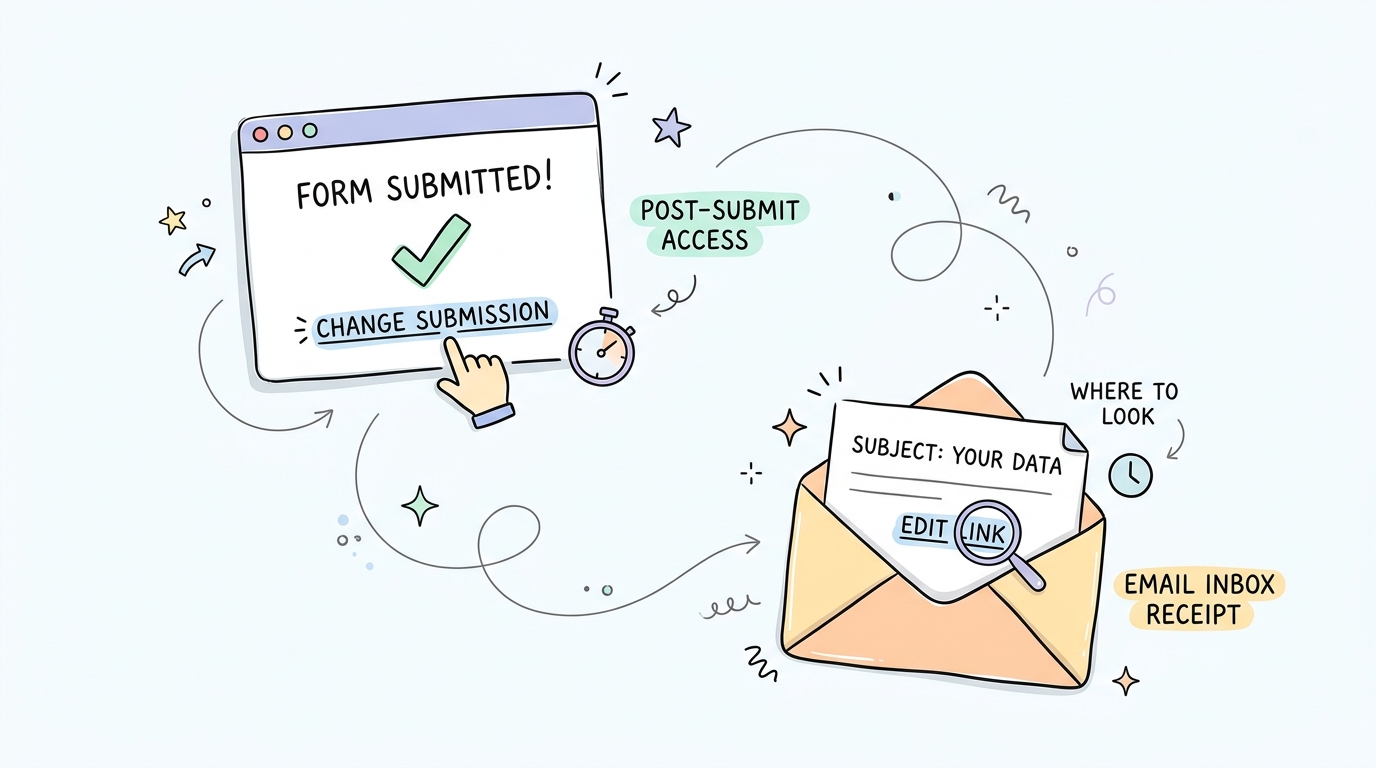 > **Rule:** You must have a Google account logged in if the form owner enabled the Limit to 1 response restriction. ## Step 3: Correcting Data Directly in Google Sheets Sometimes you just need to fix a typo for a respondent yourself. This is common when you are managing a large event or order list and need to keep data clean. **The linked spreadsheet is the fastest place to perform manual surgery.** You can reach it directly from the response dashboard. 1. Navigate to the Responses tab in Google Forms. 2. Click the green Link to Sheets icon to open the data. 3. Locate the specific cell that needs a fix. 4. Type the new data directly into the spreadsheet cell. ### Example A respondent enters a typo in their email address. You open the linked Google Sheet, locate the cell, and type the correct address to ensure your mailing list stays clean. Editing the spreadsheet does not change the data in the Google Forms internal response summary. The internal charts will still reflect the original submission. ## What to Do if the Edit Link Is Missing If the form is already closed or the edit link was never enabled, things get tricky. You might think the data is locked forever, but there are workarounds. **Owners can still rescue the data by generating URLs programmatically.** This requires a bit of scripting logic to pull the unique links for each entry. * If you forgot to enable editing, turn it on now to help future users. * If a user lost their link, use an Apps Script to retrieve the specific URL. * If you prefer total control, edit the data directly in the linked sheet. ``` // file: getEditUrls.gs function logEditUrls() { var form = FormApp.getActiveForm(); var responses = form.getResponses(); for (var i = 0; i < responses.length; i++) { // This outputs the unique URL to the Execution Log Logger.log(responses[i].getEditResponseUrl()); } } ``` 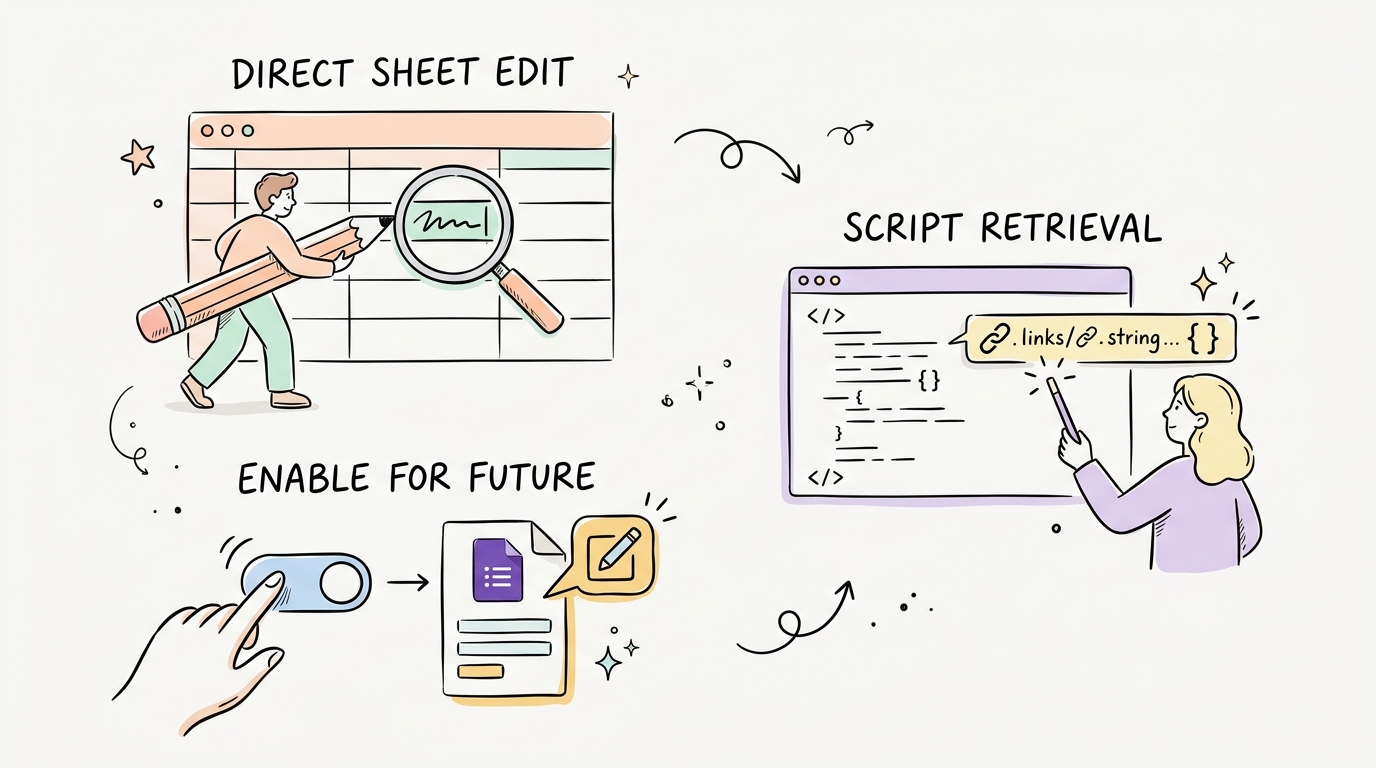 You can find a script template on [StackOverflow](https://stackoverflow.com/questions/10705574/how-to-add-edit-response-link-to-google-forms-emails) to automate this process. ## Mastering Your Google Forms Submission Workflow Accurate data is the only reason to use forms in the first place. Sloppy entries lead to wasted time and bad decision making. **Proactively enabling edit links saves everyone from unnecessary work.** Test your form with a dummy entry before the official launch to ensure everything works as expected. Share this article: [](https://www.facebook.com/sharer/sharer.php?u=undefined%2Fblog%2Fhow-to-edit-google-forms-response-after-submission)[](https://twitter.com/intent/tweet?text=How%20to%20Edit%20Google%20Forms%20Response%20After%20Submission&url=undefined%2Fblog%2Fhow-to-edit-google-forms-response-after-submission)[](https://www.linkedin.com/shareArticle?mini=true&url=undefined%2Fblog%2Fhow-to-edit-google-forms-response-after-submission&title=How%20to%20Edit%20Google%20Forms%20Response%20After%20Submission) [Minform](https://minform.io/) Build smarter quizzes and forms with AI. Product recommendations, lead qualification, assessments — describe what you need, AI builds it. [Become an Affiliate](https://minform.affonso.io) [](https://x.com/eashish93)[](https://discord.gg/Mbb24Yjwcv) #### Product * [Features](https://minform.io/features) * [Pricing](https://minform.io/pricing) * [AI Form Builder](https://minform.io/use-cases/ai-form-builder) * [AI Survey Builder](https://minform.io/use-cases/ai-survey-builder) * [AI Quiz Maker](https://minform.io/use-cases/ai-quiz-maker) * [AI PDF to Quiz Maker](https://minform.io/use-cases/ai-pdf-to-quiz-maker) * [Lead Gen Quiz](https://minform.io/use-cases/lead-gen-quiz) * [Vocabulary Quiz Maker](https://minform.io/use-cases/ai-vocabulary-quiz-maker) * [Image to Quiz Maker](https://minform.io/use-cases/ai-image-to-quiz-maker) #### Free Tools * [PDF to Quiz](https://minform.io/tools/pdf-to-quiz-maker) * [Vocabulary Quiz](https://minform.io/tools/vocabulary-quiz-maker) * [Spelling Test](https://minform.io/tools/spelling-test-generator) * [Multiple Choice Quiz](https://minform.io/tools/multiple-choice-quiz-maker) * [YouTube to Quiz](https://minform.io/tools/youtube-to-quiz-maker) * [URL to Quiz](https://minform.io/tools/url-to-quiz-maker) * [Grammar Quiz](https://minform.io/tools/grammar-quiz-maker) * [Reading Comprehension](https://minform.io/tools/reading-comprehension-quiz-maker) * [Product Recommendation](https://minform.io/tools/product-recommendation-quiz-maker) * [True/False Quiz](https://minform.io/tools/true-or-false-quiz-maker) * [Image to Quiz](https://minform.io/tools/image-to-quiz-maker) * [View All Tools](https://minform.io/tools) #### Resources * [Templates](https://minform.io/templates) * [Blog](https://minform.io/blog) * [Help Center](https://minform.io/help) * [Changelog](https://minform.io/changelog) * [Affiliate Program](https://minform.affonso.io) #### Compare * [Minform vs Typeform](https://minform.io/compare/minform-vs-typeform) * [Minform vs Google Forms](https://minform.io/compare/minform-vs-google-forms) * [Minform vs JotForm](https://minform.io/compare/minform-vs-jotform) * [Minform vs SurveyMonkey](https://minform.io/compare/minform-vs-surveymonkey) * [Minform vs Tally](https://minform.io/compare/minform-vs-tally) #### Support * Contact Us * [Privacy Policy](https://minform.io/privacy) * [Terms of Service](https://minform.io/terms) © 2026 Minform. All rights reserved. How to Edit Google Forms Response After Submission
Genesis Park 편집팀이 AI를 활용하여 작성한 분석입니다. 원문은 출처 링크를 통해 확인할 수 있습니다.
공유